Improve performance and master Figma components with the Master plugin
Explore how to improve your Figma workflow with the Master plugin. A detailed guide to managing interface components efficiently, saving time, and improving product quality!
Contents
Introduction
When designing interfaces in Figma, efficient component management is key to saving time and improving product quality. Instead of time-consuming manual steps, the Master plugin offers a fast, precise approach. This article introduces Master and explains how to use it to improve your workflow.
🌟 What is the Master plugin?
Master is a powerful plugin developed specifically for Figma, helping designers manage components flexibly and efficiently with features such as:
-
⚡ Quickly create components from existing objects.
-
🔗 Link objects to an existing component while preserving overrides.
-
📂 Duplicate and move components between files without losing existing settings.
👉 You can try Master for free here
Override preservation requires layer structure and order compatible with the target component. Test a small selection before bulk changes; structurally changed content may not retain every override.
🛠️ General guide to the Master plugin
How to open the Master plugin in Figma:
-
Open the Plugins menu in Figma or find Master through command search.
-
Search for “Master” and launch the plugin.
-
Choose one of the available functions from the list.
1. ⚡ Quickly create components (Create Component from Objects)
This feature quickly converts one or more design objects - frames, groups, or objects - into components while retaining their content and internal structure.
Steps
-
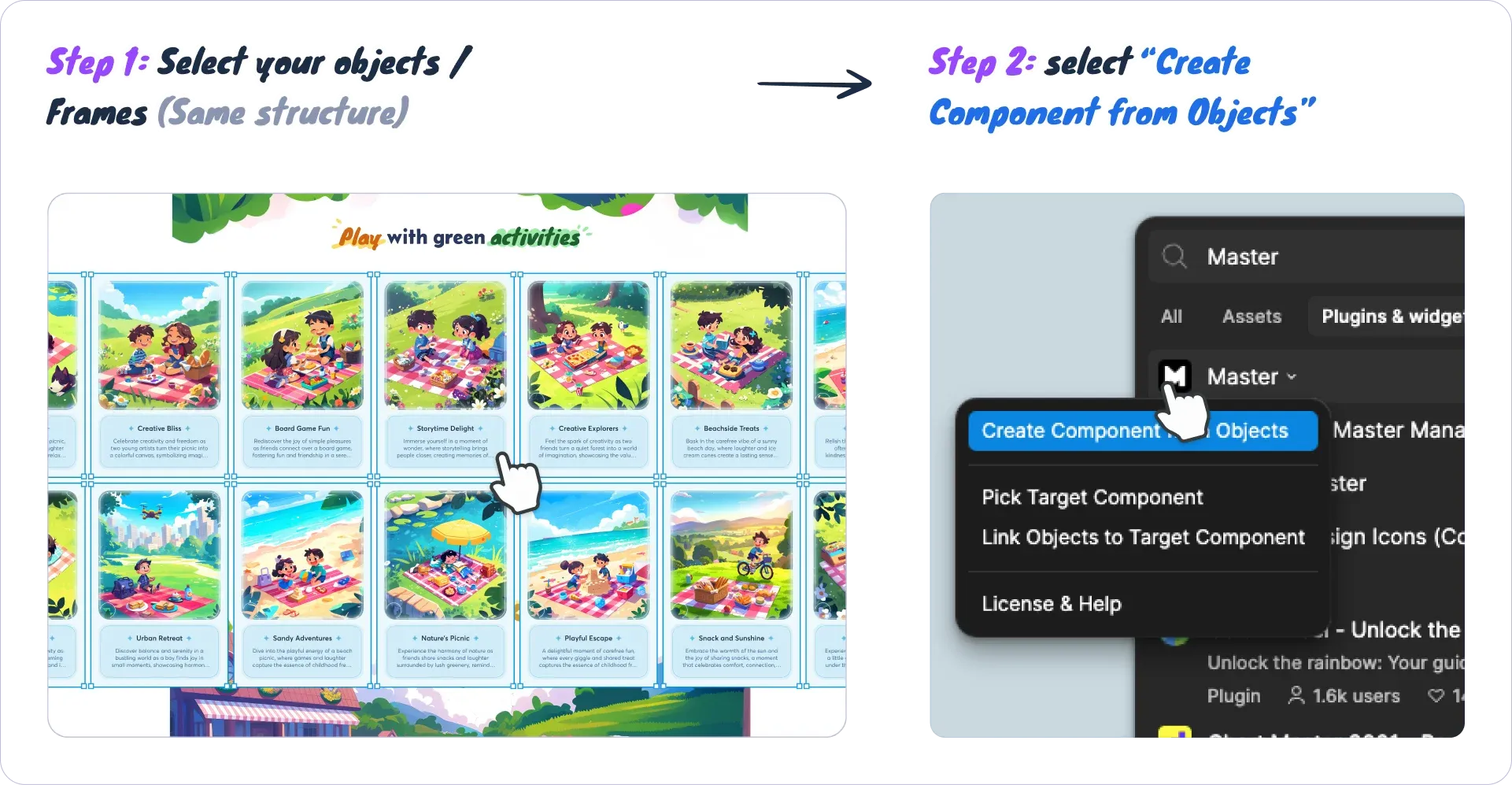
Select the objects you want to convert.
-
Launch Master and choose Create Component from Objects.
-
Master automatically creates a new component and turns the selected objects into instances linked to it.
📌 Example - Convert multiple card frames into a component
You have frames from an earlier design and want to turn them into components for easier reuse and editing. The key is to preserve images, text, and icons without setting everything up again.
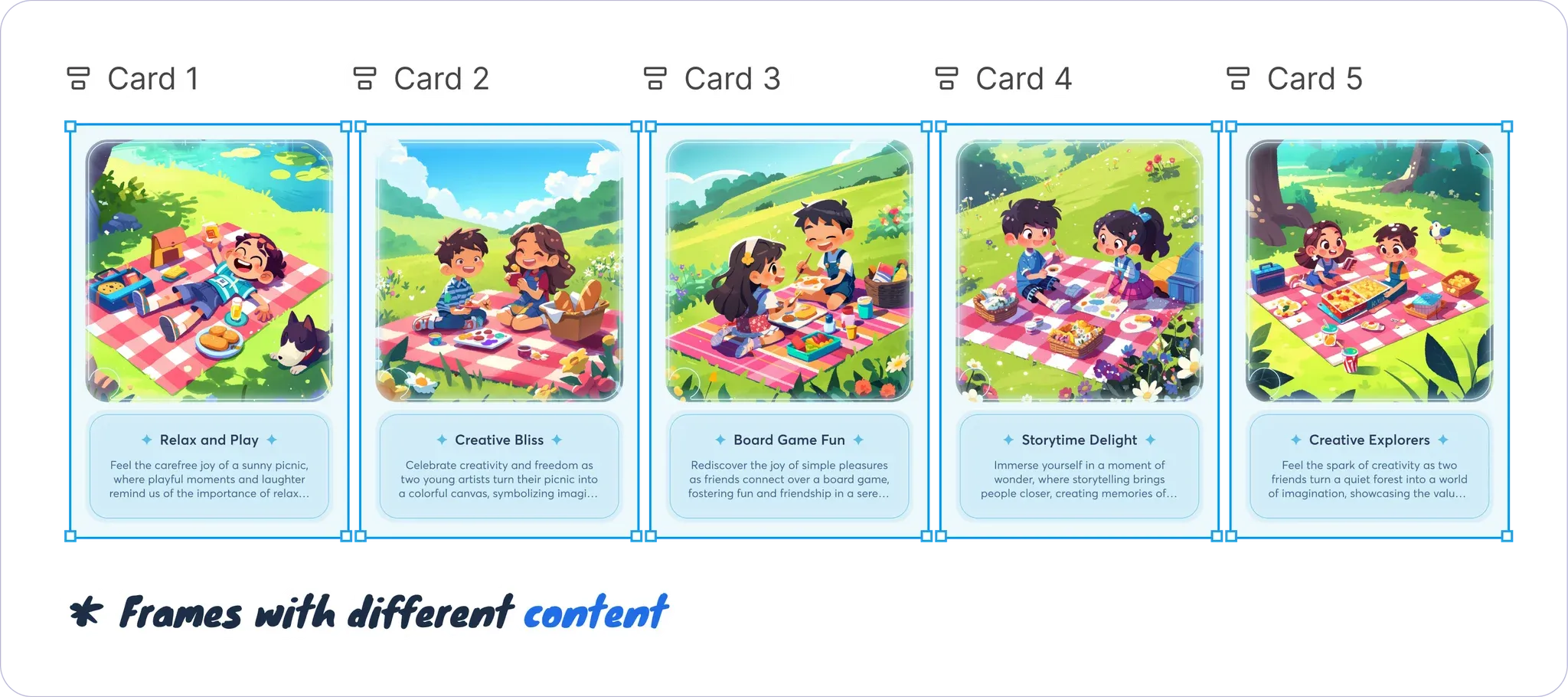
🔹 Solution
With Master, you don't need to rebuild the component. Select all the frames > Open Master > Create Component from Objects.
👉 Result: The frames become one component and the selected objects become instances, retaining compatible text, image and icon overrides.
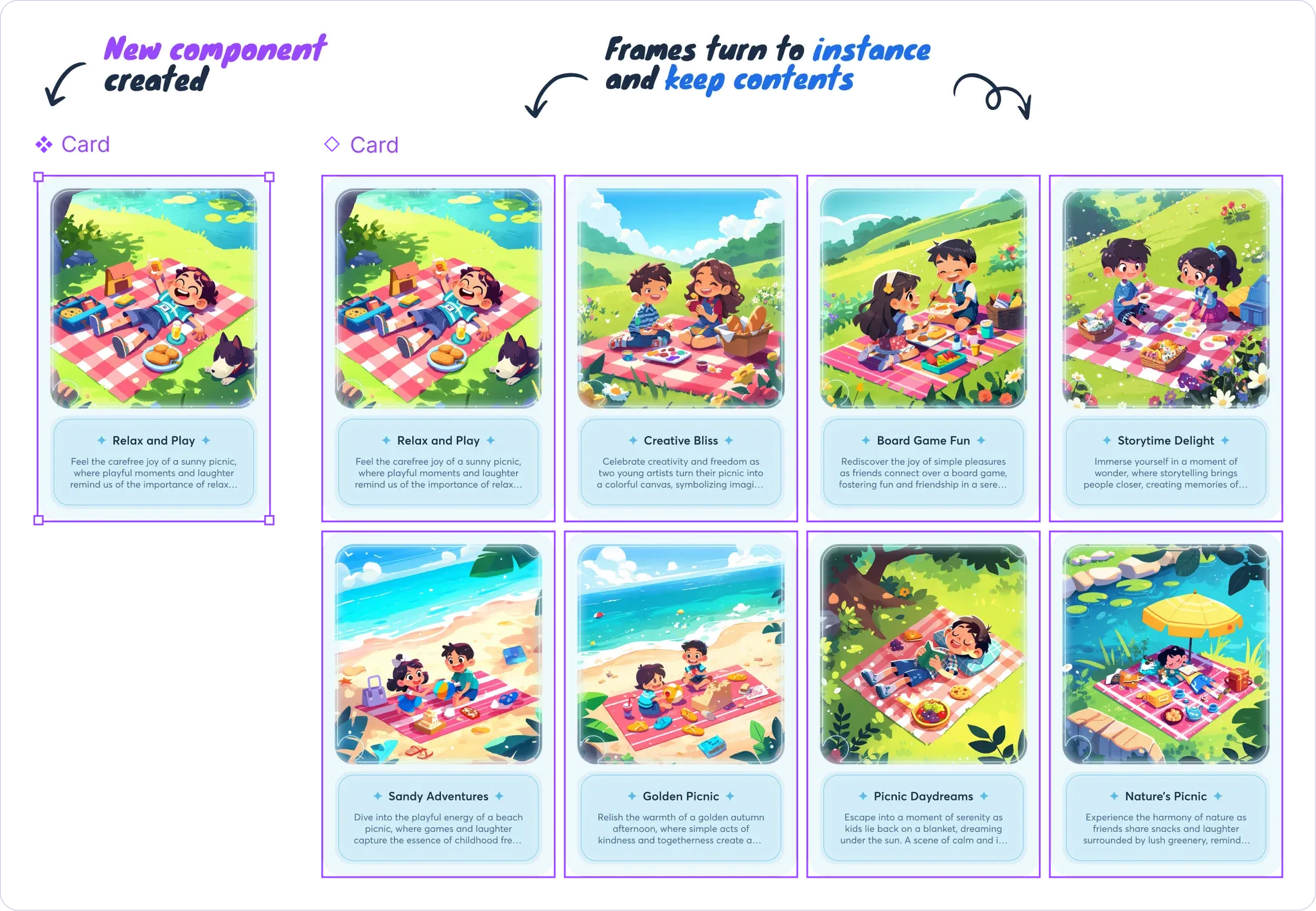
✨ This also lets you adjust the design of multiple items at once - the frames are automatically converted into instances.
2. 🔗 Quickly link objects to an existing component (Attach/Link Objects to Target Component)
Instead of recreating instances, you can quickly link existing objects to a main component.
Steps
-
Select the main component, open Master, and choose Pick Target Component to set the target.
-
Select the objects to link, then choose Link Objects to Target Component.
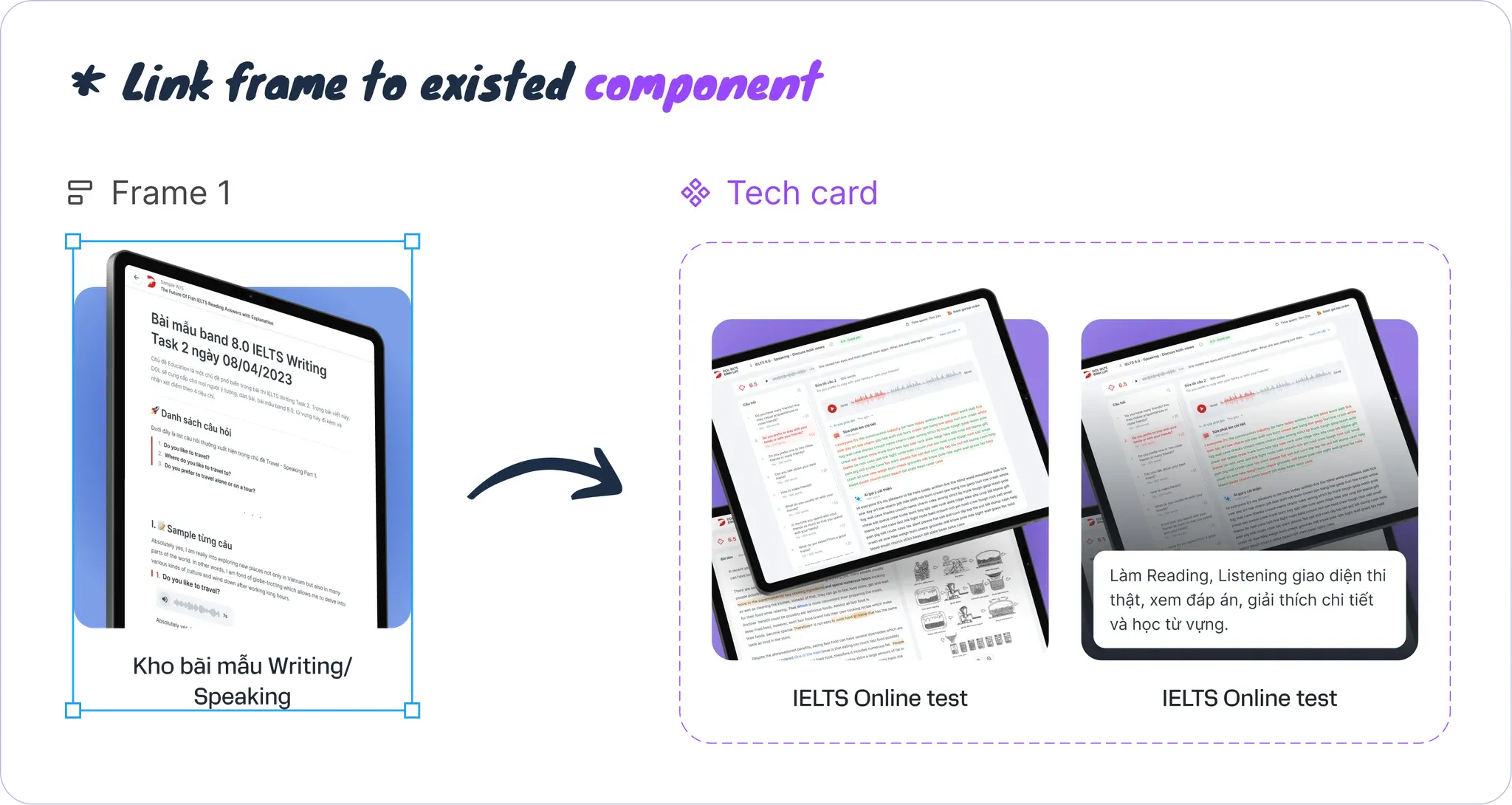
📌 Example - Link card frames to the same main component
When designing a list of cards with repeated content structures, you may accidentally create separate frames rather than use one shared component. This makes later edits time-consuming and difficult to synchronize. 🔹 Master can link those frames to your existing component.
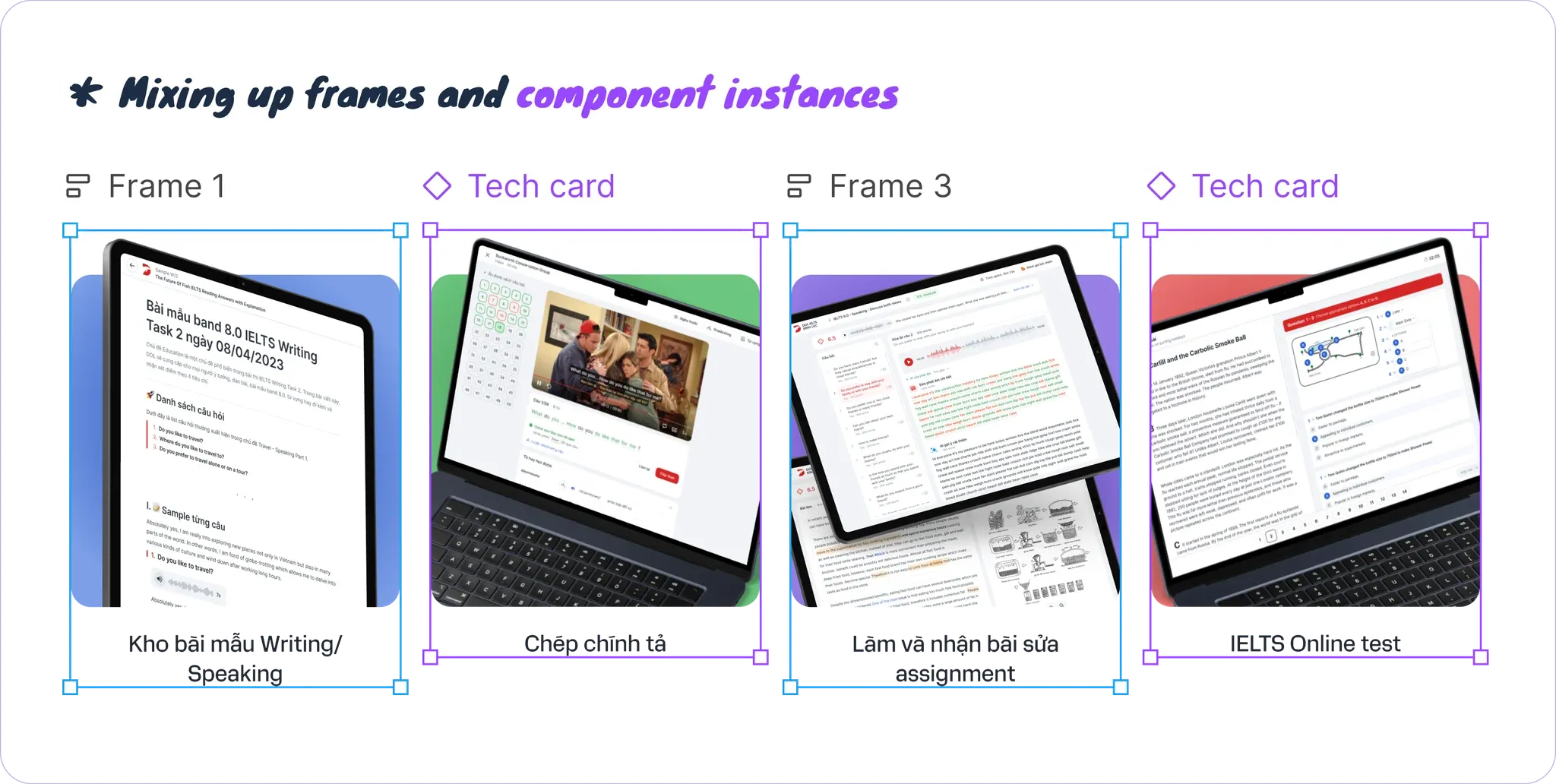
🔹 Solution
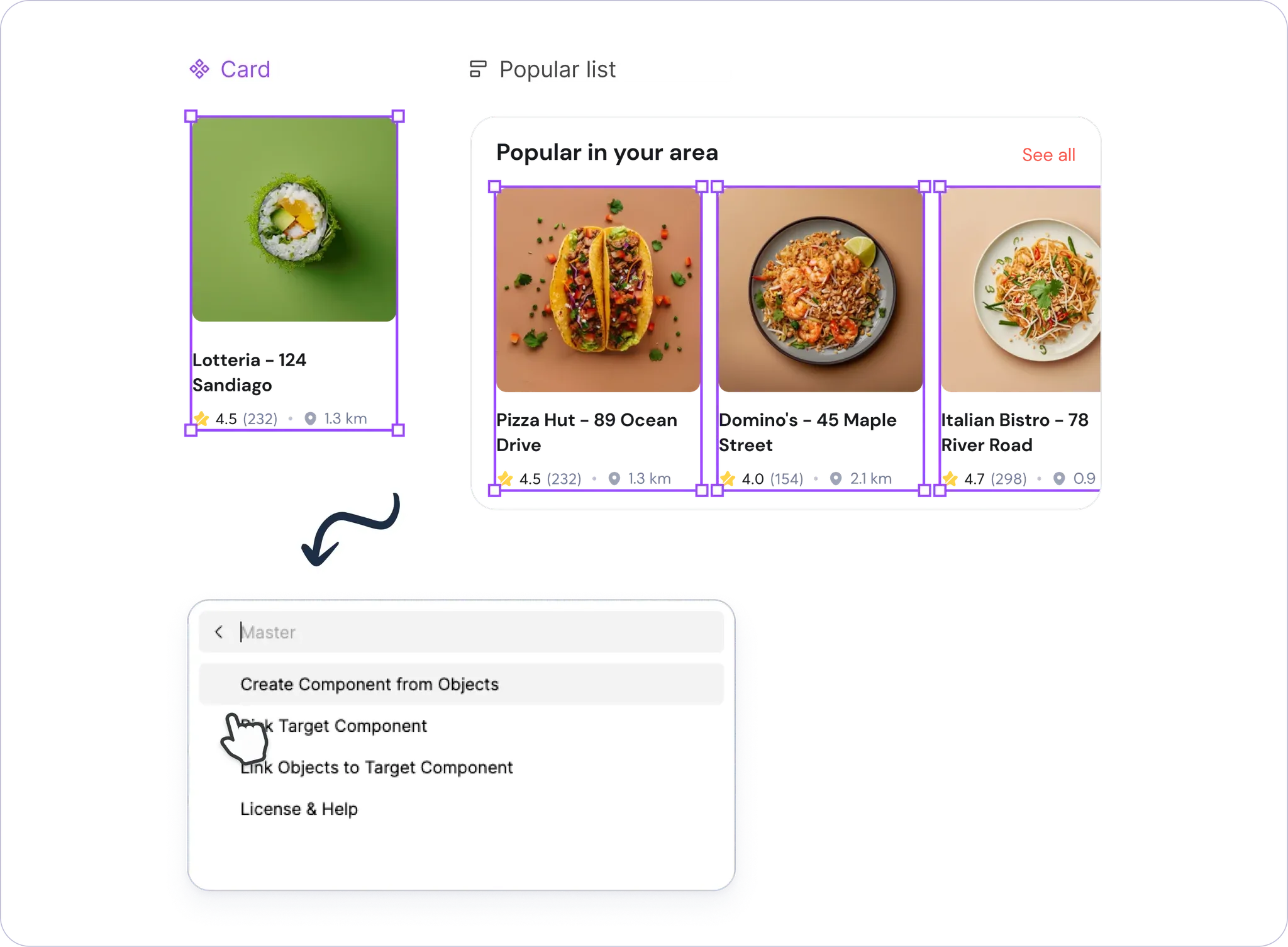
Step 1: Select the main component, open Master, and choose Pick Target Component to mark the target.
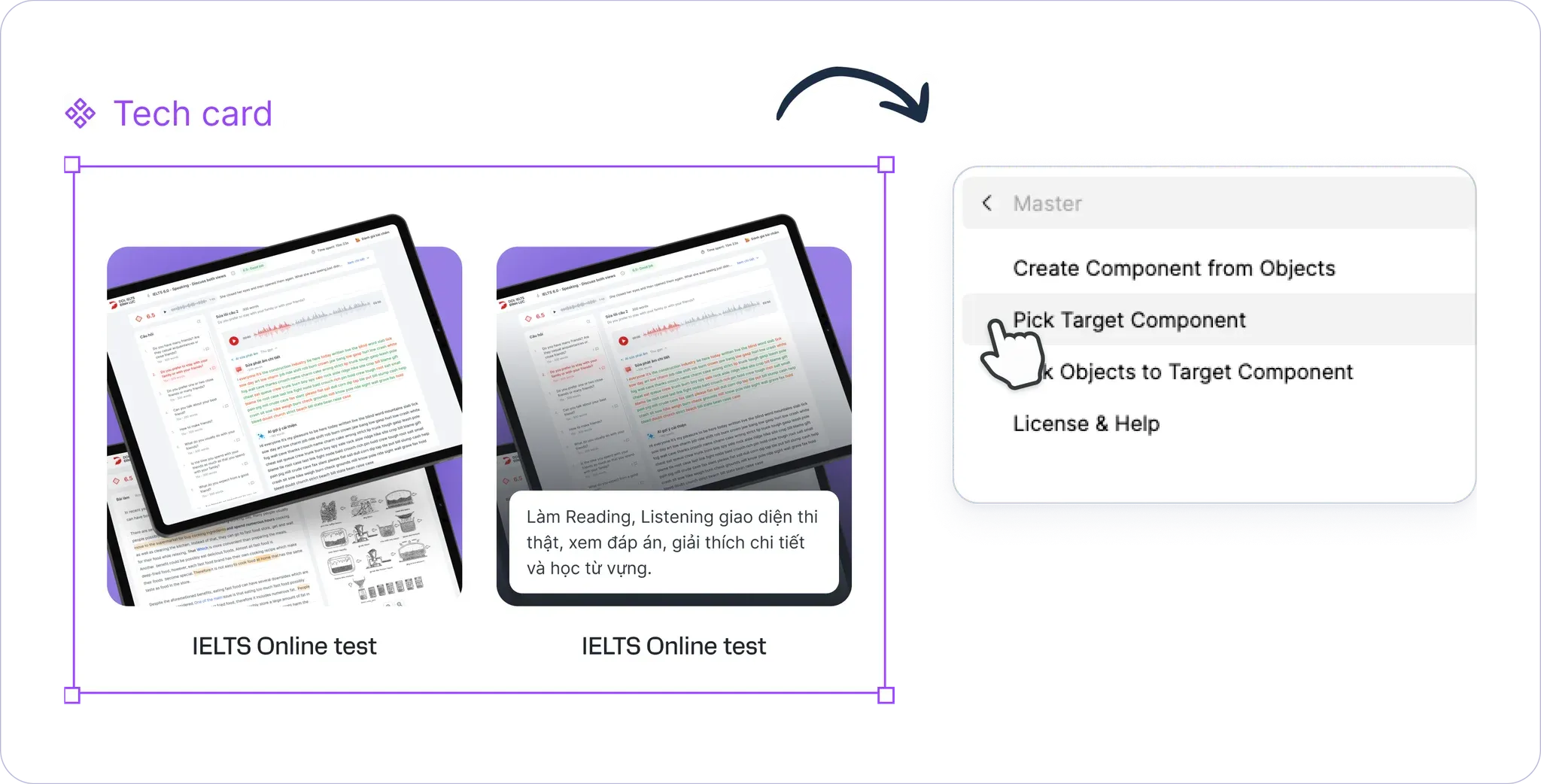
Step 2: Select the individual frames to attach > Run Link Objects to Target Component to connect them to the main component.
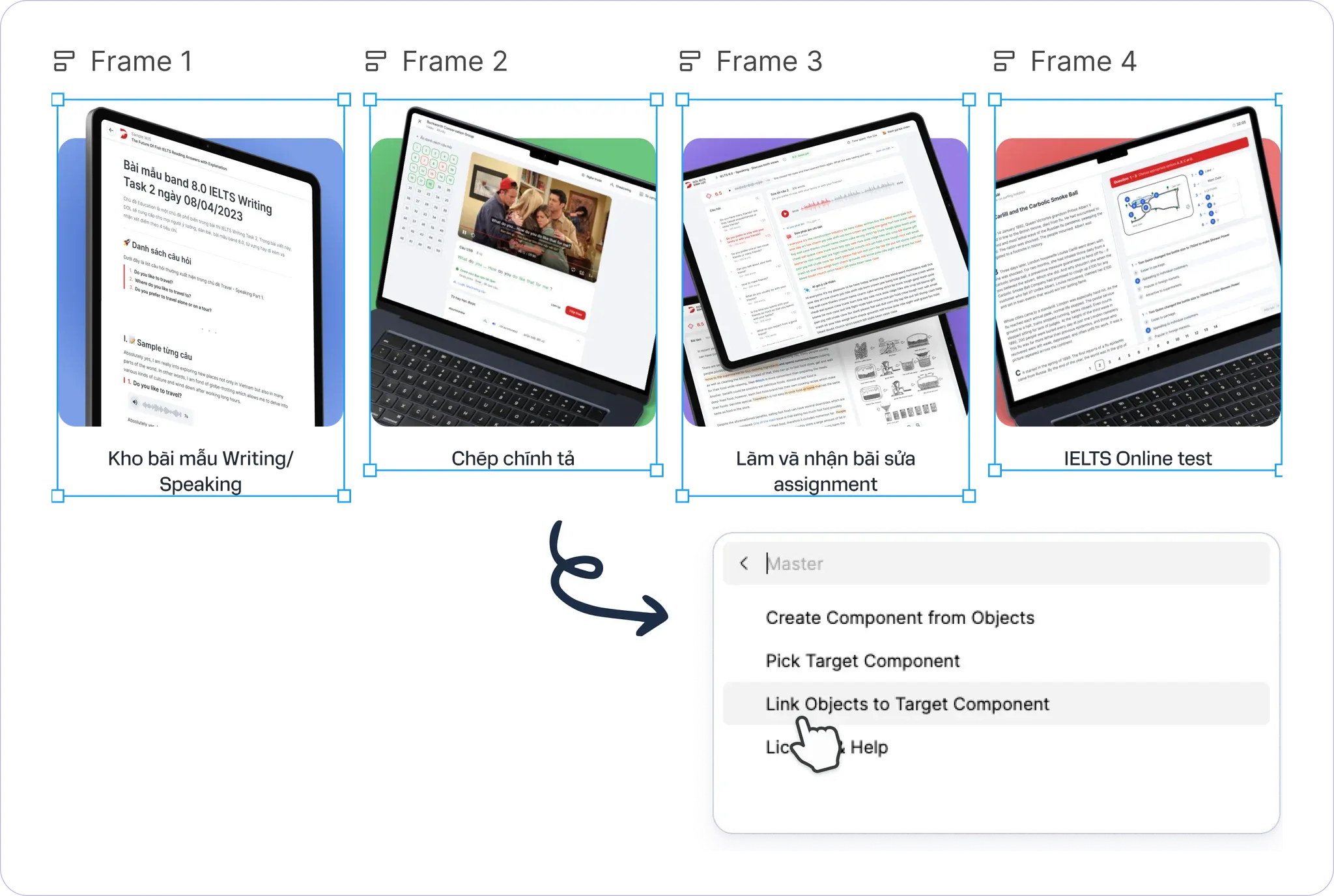
👉 Result: The selected frames become instances of the target component, retaining compatible text and image overrides.
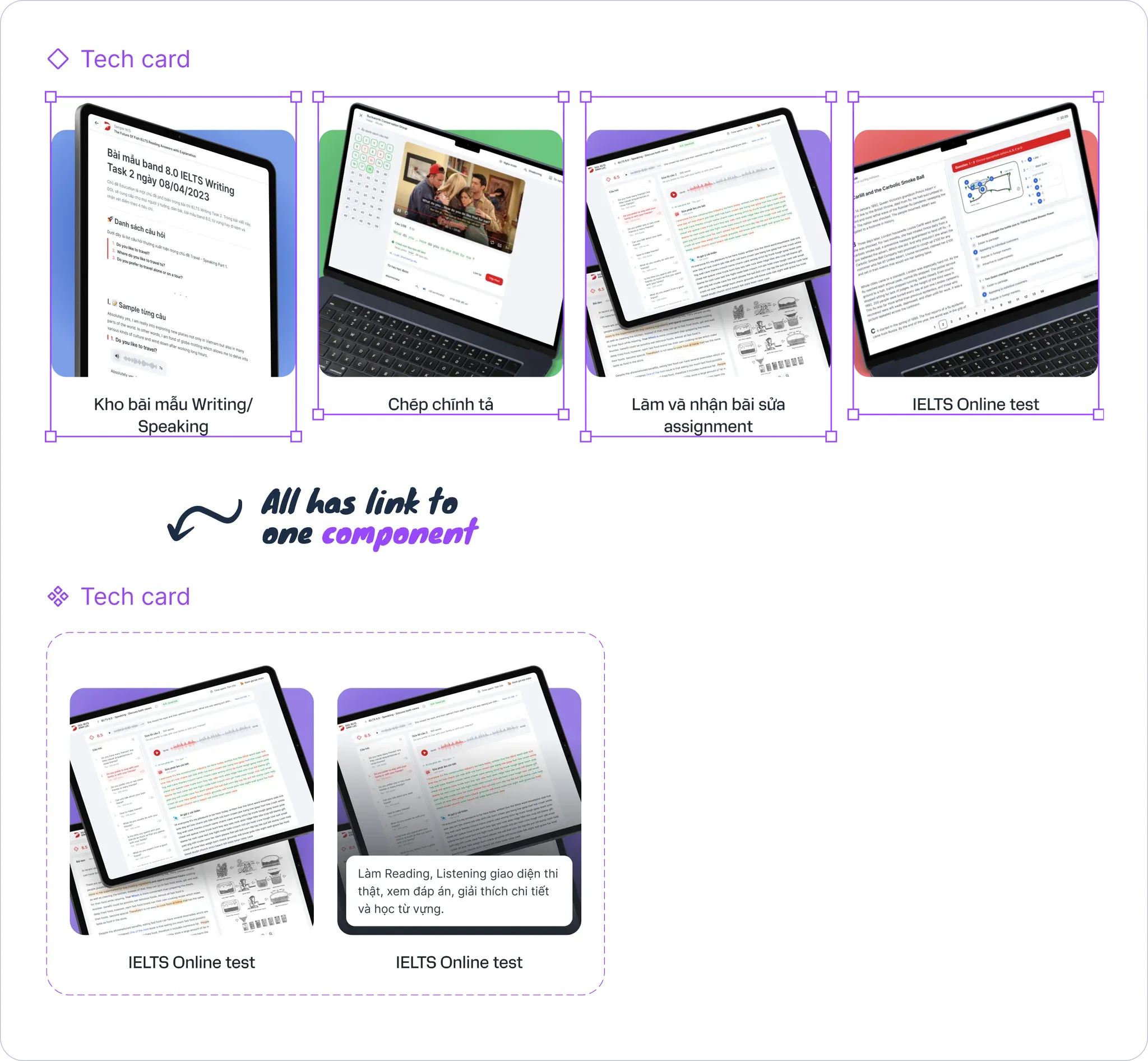
✨ Now you can edit card designs centrally through the main component, and all instances will update.
3. Duplicate a component without affecting the original
If you need a separate component version for a specific situation, Master makes duplication easy.
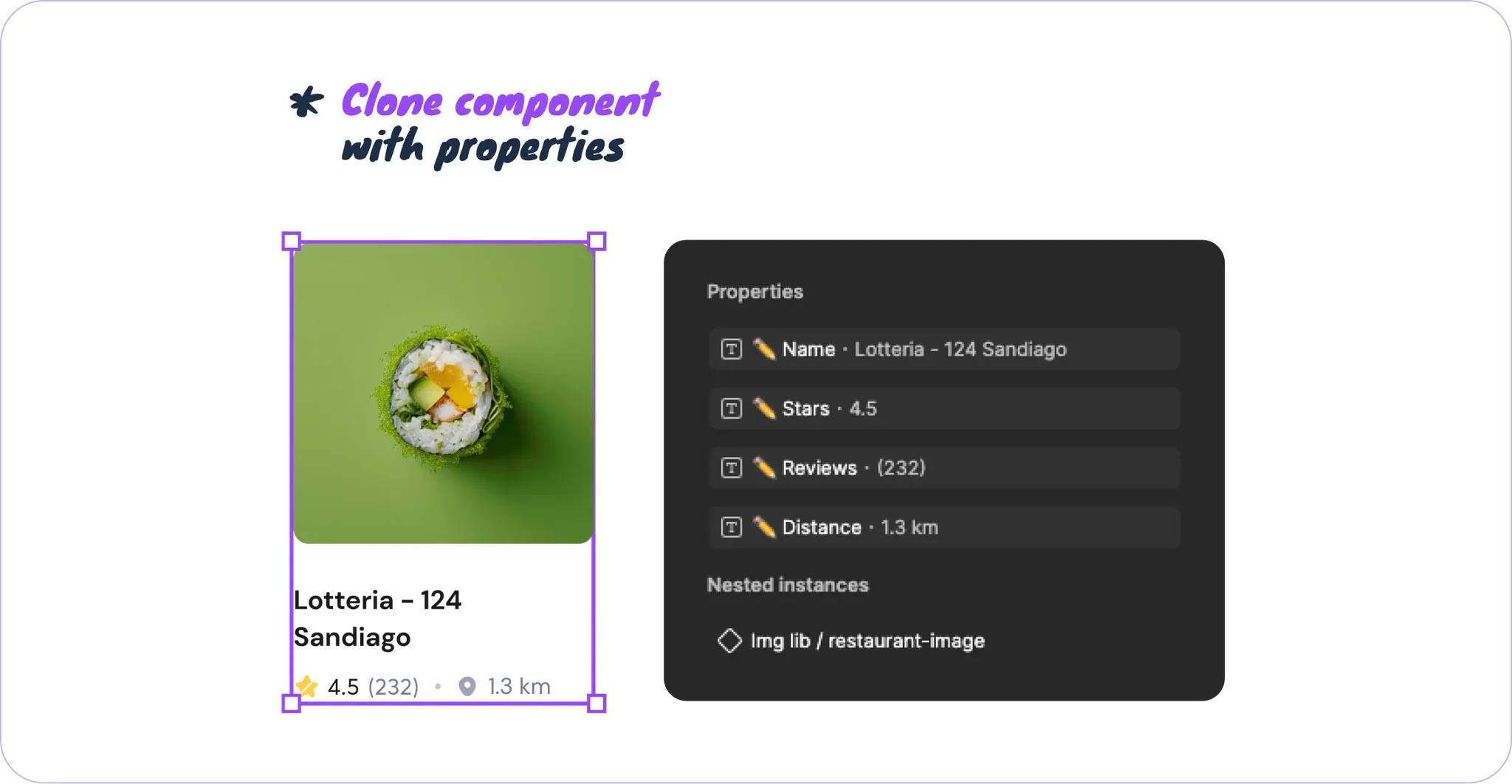
📌 Example - Duplicate a component to create a separate variation
Several screens share a component for their content lists, but you now want to separate them without affecting the original. You also want to create the new component from existing objects while preserving their content.
🔹 Solution
Select the instances together with the main component > Use Create Component from Objects to create a new component from these instances.
👉 Result: You can edit the new component, and changes affect only the instances you selected.
4. Swap components in bulk (Bulk Swap)
This feature quickly replaces instances of one component with another, especially useful for updating designs in bulk.
📌 Example - Replace old CTA buttons with a new design in bulk
Your design has many CTA buttons using the same old component. You want to replace all of them with a more effective design. Manually changing each button would take a long time.
🔹 Solution
Step 1: Select the new component you want to use. Open Master and choose Pick Target Component.
Step 2: Select an instance or the old component itself, then run Link Objects to Target Component.
To replace all instances in the file following the author’s Bulk swap guide, deselect everything and run Link Objects to Target Component again. Check the result and layer structure before continuing in another file.
✨ Bulk updating saves time and avoids errors from manual edits.
5. Quickly reattach detached instances
Master also helps recover instances accidentally detached from their main component, keeping your design consistent.
📌 Example - Restore a frame detached from its main component
During teamwork, someone accidentally detaches instances from the original component. This makes later updates harder and requires time-consuming manual adjustments.
🔹 Solution
Step 1: Select the main component to reconnect to, open Master, and choose Pick Target Component.
Step 2: Select the detached instances, then run Link Objects to Target Component.
👉 Result: Detached instances reconnect to the original component, retaining compatible customizations.
✨ You can now keep editing the main component and all instances will update automatically, maintaining consistency and saving time.
🎯 Wrap-up
This has been a detailed, illustrated guide to using Master to manage and work confidently with Figma components.
🌟 Master helps you:
-
Save considerable time.
-
Preserve overrides when creating or linking components.
-
Manage and adjust components easily and flexibly.
👉 You can try Master for free here
https://www.figma.com/community/file/866989069848484835/master-plugin-guide
Make use of plugins to save time, improve your workflow, and work more efficiently in Figma!