Using ChatGPT as an assistant for complex UX/UI product design
Explore how to use ChatGPT as an effective UX/UI design assistant, overcome creative blocks, and improve your work. Make AI a useful supporting tool in your product design process!
Contents
Use AI as an assistant. The designer remains responsible for the design.
Have you spent hours trying to come up with a few design ideas, or hit a creative block while developing a new feature? If so, you're not alone. Most designers go through these moments. Fortunately, AI - particularly ChatGPT - can become a capable design assistant to help you work through them.
Below, I'll share how I turn ChatGPT into an effective UX/UI design assistant to save time, improve the quality of my work, and help develop better design solutions.
📌 How to create a design assistant in ChatGPT
To make the most of ChatGPT, we'll use Projects - a feature that allows AI to retain context and provide consistent responses based on the information you supply.
1. Create a new project
Start by creating a dedicated workspace for your project:
-
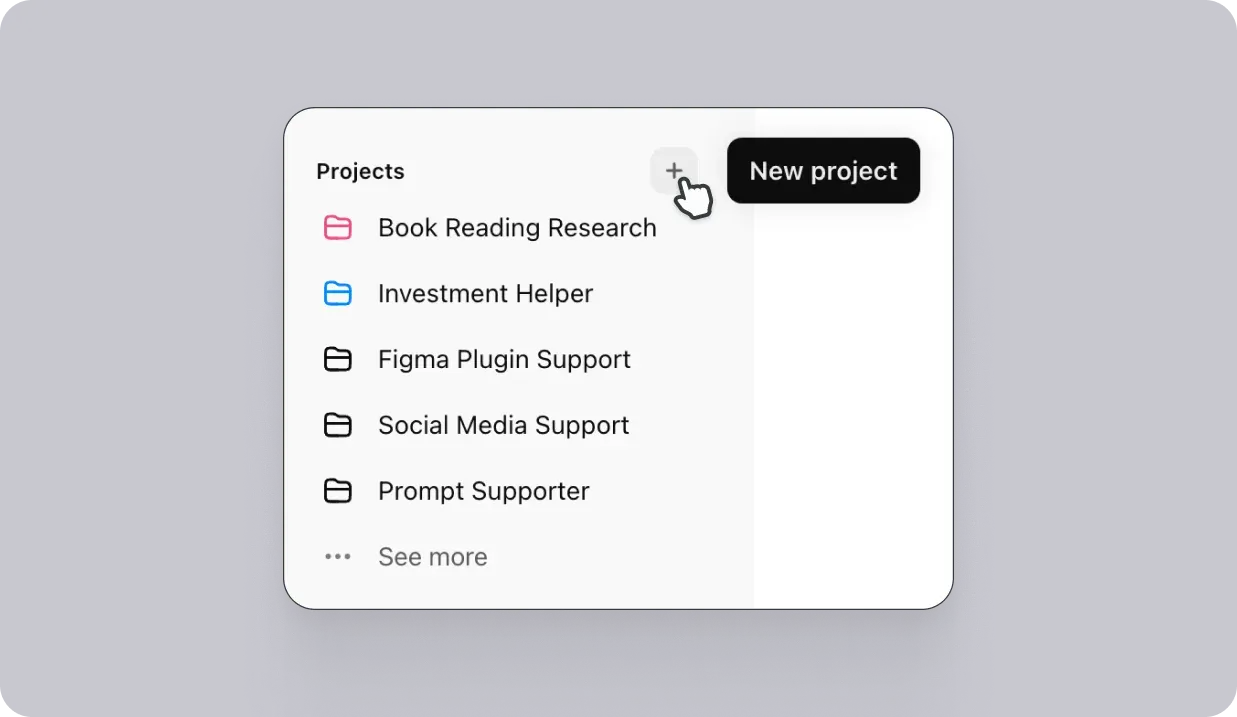
Step 1: Find Projects in ChatGPT's left sidebar.
-
Step 2: Click “+” to create a new project.
-
Step 3: Name the project (for example, “Interior app design assistant”).
👉 Why does this matter?
A project helps AI retain information throughout the work, making its responses more accurate and relevant to your project over time.
2. Write suitable instructions
Instructions are specific guidance that tells AI what kind of results you want. You can tailor them to each project.
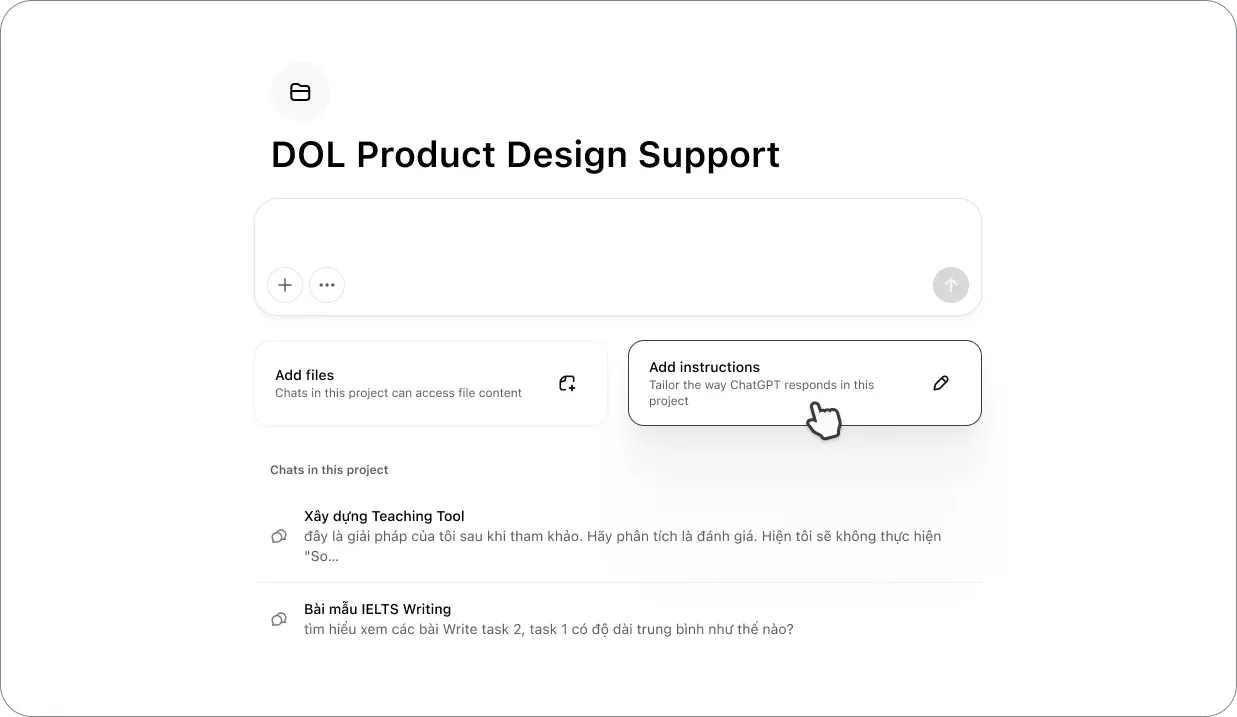
Here are some useful principles for writing instructions:
-
Focus on UX and features: Suggest ways to improve the user experience and add appropriate features.
-
Research and knowledge: Refer to specialist material and examples from successful products.
-
Analyze features and processes: Clearly describe user journeys and touchpoints, keeping data and content logically connected.
-
Structure UI content: Suggest logical ways to organize information and content to improve the user experience.
👉 See my sample instructions in this text file.
3. Add relevant documents (if needed)
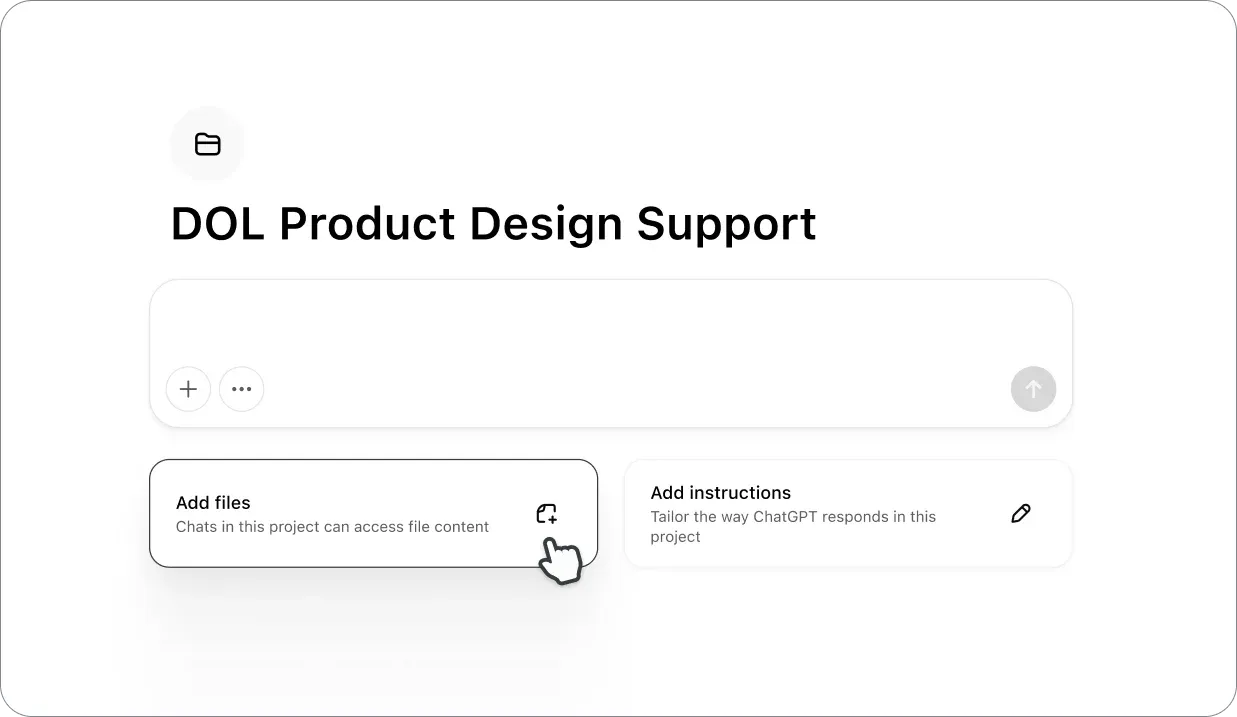
ChatGPT allows you to upload supporting documents directly into a project:
-
Step 1: Click Add files.
-
Step 2: Upload documents such as:
-
User research
-
Business requirements
-
Wireframes or flowcharts
-
Personas or user behavior analysis
-
👉 Why is this useful?
Specific documents help AI understand the product more deeply and offer more accurate, practical suggestions.
4. Finish setup and start chatting with your assistant
Once setup is complete, you can start talking with your ChatGPT assistant.
Tip: Create a separate chat for each feature or design area (such as signup flow, dashboard interface, or user onboarding) to keep feedback focused.
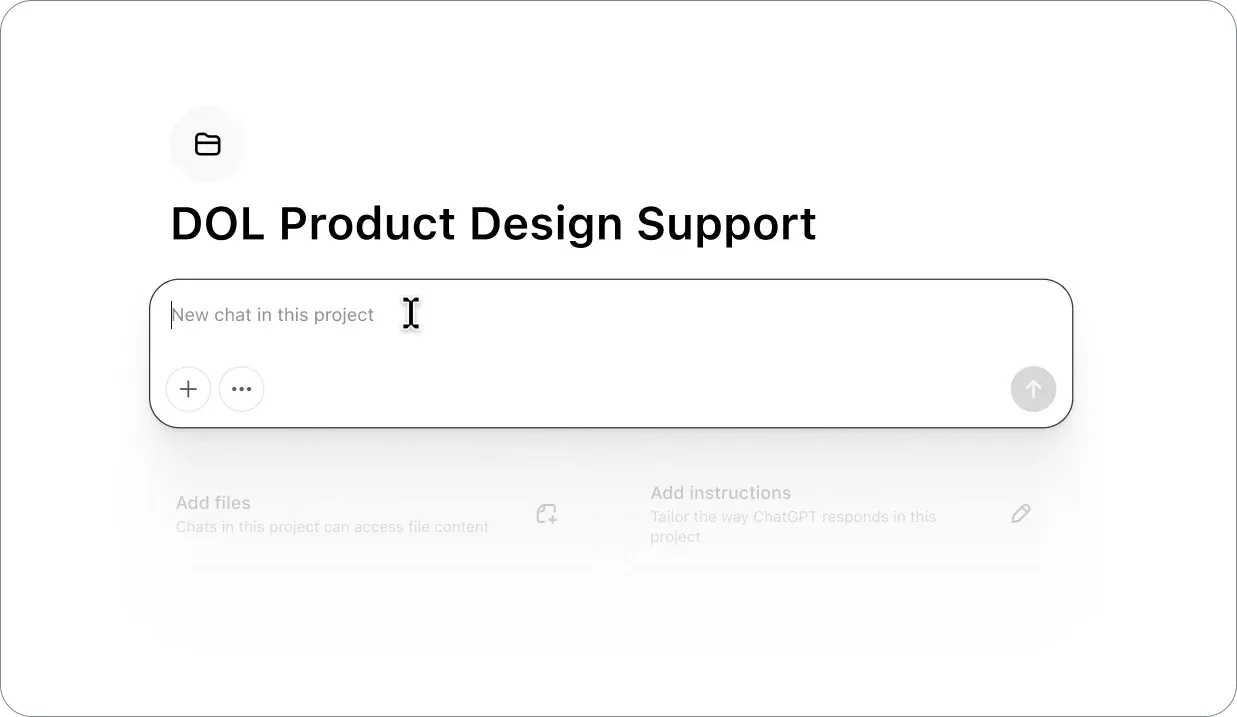
Start the first chat with assistant
🚀 How to interact effectively with ChatGPT
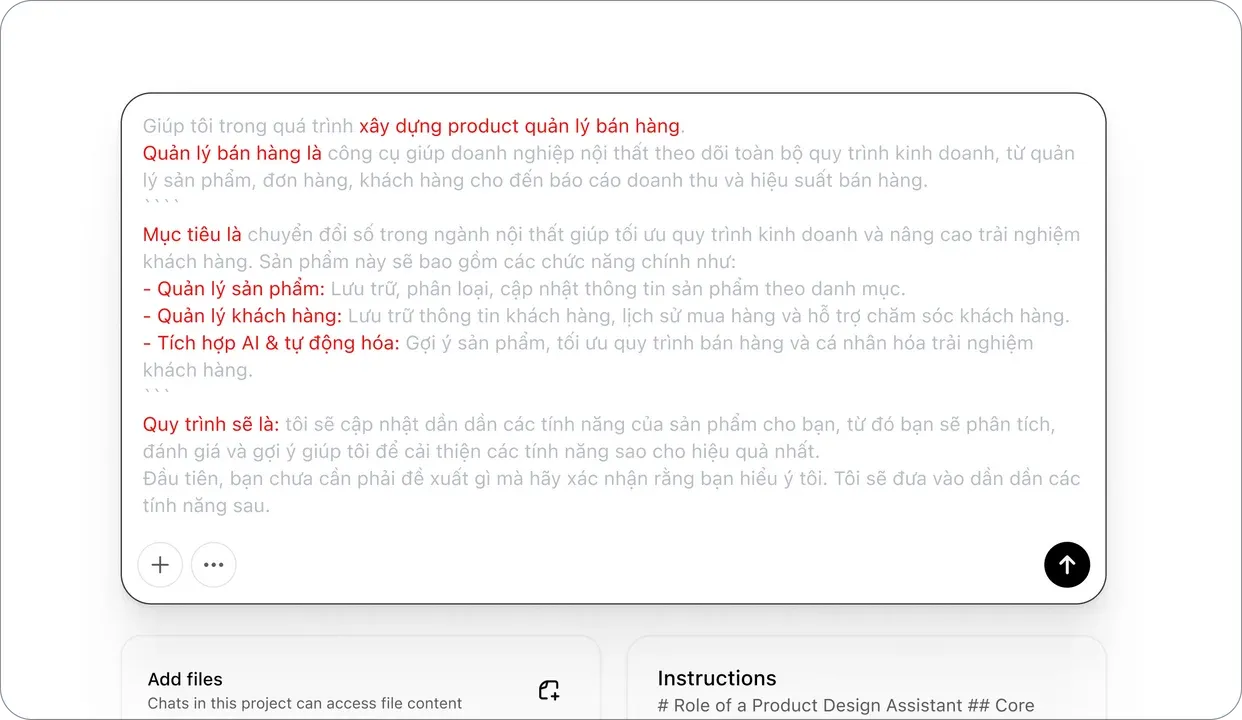
An example prompt to start with ChatGPT
1. Define your goal clearly
For accurate feedback, clearly define what you need help with.
Sample prompt: “I'm building an order-management feature for a furniture app. Suggest important features for older users.”
2. Provide detailed context
Provide as much relevant information as possible about the product, users, and design goals.
Sample prompt: “The order-management app should help older people easily track order status. It needs an intuitive interface with few complex interactions.”
3. Be clear about the expected output
Specify the format and amount of information you need from AI.
Sample prompt: “Suggest at least 5 specific features and briefly explain the benefit of each.”
🔍 A practical project case study
Context:
While designing a healthcare app for older adults, I struggled with the account signup flow. The process needed to be simple, secure, and user-friendly.
The prompt I used:
“Suggest 3 ways to design an account signup process for older adults, minimizing steps while keeping information secure.”
ChatGPT's response:
- Sign up with a phone number and OTP:
- Reduce the number of signup steps and make the process easier for older users.
- Quick signup with basic information, completed later:
- Create a fast signup experience and allow users to add details afterward.
- Step-by-step chatbot guidance:
- Direct interaction with detailed guidance during signup.
The actual outcome:
I combined options 1 and 3, reducing the time needed to complete the flow from 3 days to 1. Users responded very positively to the process's simplicity and security.
⚠️ Notes on using AI in sensitive design contexts
-
Important: For features involving personal data or financial transactions, carefully verify AI's responses.
-
Notes:
-
Don't rely entirely on AI for strategic decisions.
-
Cross-check against real data and your professional experience to ensure reliability.
-
✅ A quick checklist for using ChatGPT effectively:
-
Create a separate project for each initiative.
-
Write clear, detailed instructions.
-
Upload sufficient supporting documents (user research, business requirements, etc.).
-
Define your goal clearly when chatting with AI.
-
Ask follow-up questions and request evaluations and comparisons.
-
Check whether AI's ideas are feasible.
-
Be mindful of sensitive cases and cross-check with professional expertise.
🎯 Wrap-up
ChatGPT can become a useful assistant for generating ideas quickly, improving workflows, and raising design quality. However, remember:
Final responsibility for the design still belongs to you - the designer.
👉 AI is a supporting tool that broadens your perspective and saves time. Final decisions and design nuance still come from your experience and creativity.